(en-gb) ▼
  Klick hier, um diese Seite auf Deutsch zu lesen
 Click here to read this page in English
 Cliquez ici pour lire cette page en français
 Klik hier om deze pagina in het Nederlands te lezen
46035members
2266online
158051posts
For a RAID array, at least two hard drives or (NVMe M.2) SSDs are required. To achieve optimal performance, the hard drives or SSDs should be of the same size and come from the same model series. The BIOS screenshots in this manual are for reference only and may differ from the exact settings for your motherboard.
⚠️Note⚠️ Please note that the BIOS setup menus shown in this FAQ may differ from the specific settings of your motherboard. Depending on your motherboard model and the BIOS version installed, the BIOS setup menu options actually displayed may look different.
F2 or Delete key to enter the BIOS Setup. Navigate to Storage Configuration \ VMD Configuration, ensure that the Enable VMD controller and Enable VMD Global Mapping are set to enabled. Press F10 to save the settings and exit the BIOS.
Enter.
Enter.
Enter.
Enter.
Enter to start creating the RAID array.

Delete key to enter the BIOS Setup. Navigate to Settings \ IO Ports \ SATA And RST Configuration, ensure that SATA Controller(s) is set to enabled. For RAID configuration, open Settings \ IO Ports \ VMD setup menu and set Enable VMD controller to Enabled and Enable VMD Global Mapping to Disabled. Then, depending on whether SATA / M.2 storage devices are used, enable the corresponding entries in Map this Root Port under the VMD item.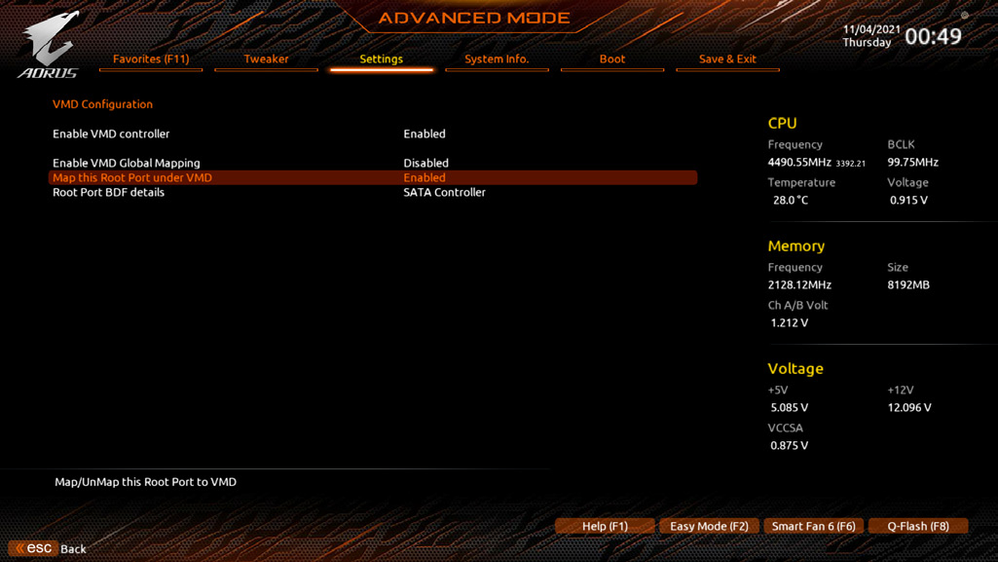
Enter. Then select the RAID level. Depending on the number of installed storage devices, the levels RAID 0, RAID 1, RAID 10, and RAID 5 are offered. Use the arrow keys to select Select Disks.Spacebar to select a drive (selected ones are marked with an X). Then set the block size, with values ranging from 4 KB to 128 KB possible. After selecting the stripe block size, set the capacity of the volume.Enter.Enter to view detailed information about the RAID.


Delete key to enter the BIOS Setup. Under Settings\IO Ports, set SATA Configuration\SATA Mode to RAID. Then save the settings and restart your computer. (If you want to use NVMe PCIe SSDs to configure RAID, make sure to set NVMe RAID mode to Enabled.)

Step1:
In BIOS Setup, go to Boot and set CSM Support to Disabled. Save the changes and exit BIOS Setup.
Step 2:
After the system reboot, enter BIOS Setup again. Then enter the Settings\RAIDXpert2 Configuration Utility sub-menu.
Step 3:
On the RAIDXpert2 Configuration Utility screen, press Enter on Array Management to enter the Create Array screen. Then, select a RAID level. RAID levels supported include RAID 0, RAID 1, and RAID 10 (the selections available depend on the number of the hard drives being installed). Next, press Enter on Select Physical Disks to enter the Select Physical Disks screen.
Step 4:
On the Select Physical Disks screen, select the hard drives to be included in the RAID array and set them to Enabled. Next, use the down arrow key to move to Apply Changes and press Enter.Then return to the previous screen and set the Array Size, Array Size Unit, Read Cache Policy and Write Cache Policy.
Step 5:
After setting the capacity, move to Create Array and press Enter to begin.
After completing, you'll be brought back to the Array Management screen. Under Manage Array Properties you can see the new RAID volume and information on RAID level, array name, array capacity, etc.
To delete a RAID array, select the array to be deleted on the RAIDXpert2 Configuration Utility\Array Management\Delete Array screen. Press Enter on Delete Array to enter the Delete screen. Then set Confirm to Enabled and press Enter on Yes
With the correct BIOS settings, you are ready to install the operating system.
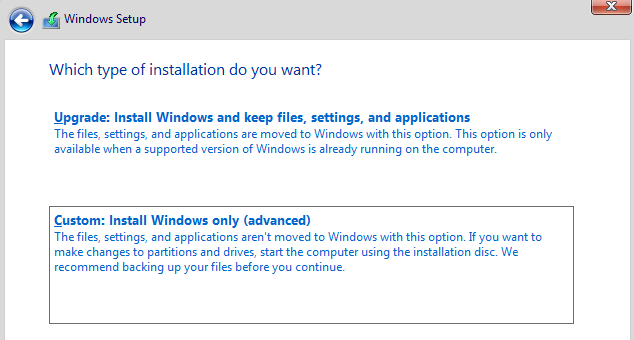
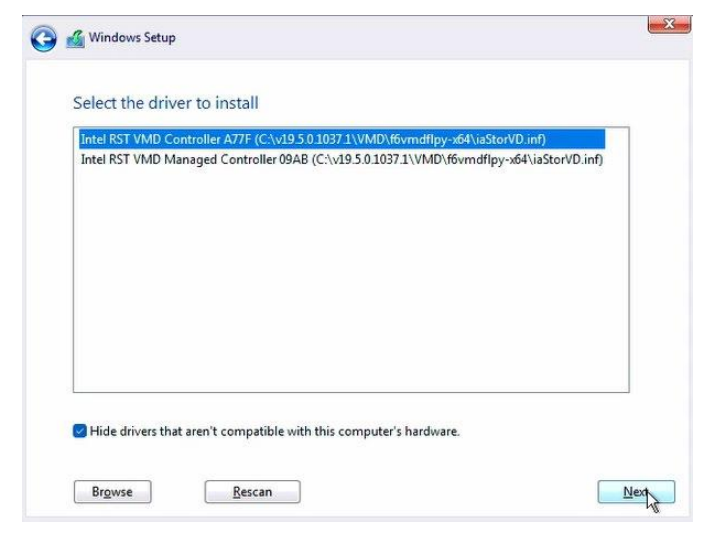
As some operating systems already include RAID driver, you do not need to install separate RAID driver during the Windows installation process. After the operating system is installed, we recommend that you install all required drivers from the motherboard driver disc using "Xpress Install" or from the GIGABYTE APP Center to ensure system performance and compatibility. If the operating system to be installed requires that you provide additional RAID driver during the OS installation process, please refer to the steps below:
Step 1:
Method 1: Copy the Hw10 folder under the \BootDrv folder in the driver disc to your USB thumb drive.
Method 2: Go to GIGABYTE's website, browse to the motherboardmodel's web page, download the AMD RAID Preinstall Driver file on the Support\Download\SATA RAID/AHCI page, unzip the file and copy the files to your USB thumb drive.
Step 2:
Boot from the Windows setup disc and perform standard OS installation steps. When the screen requesting you to load the driver appears, select Browse.
Step 3:
Insert the USB thumb drive and then browse to the location of the driver. When a screen as shown in Figure 1 appears, select AMD-RAID Bottom Device first and click Next to load the driver. Then select AMD-RAID Controller and click Next to load the driver. Finally, continue the OS installation.
Rebuilding is the process of restoring data to a hard drive from other drives in the array. Rebuilding applies only to fault-tolerant arrays such as RAID 1 and RAID 10 arrays. To replace the old drive, make sure to use a new drive of equal or greater capacity. The procedures below assume a new drive is added to replace a failed drive to rebuild a RAID 1 array.
While in the operating system, make sure the Chipset and RAID drivers have been installed. Then double-click the RAIDXpert2 icon on the desktop to launch the RAID utility.
Step 1:
Enter the login ID and password (default: "admin"), and then click Submit to launch AMD RAIDXpert2.
Step 2:
In the Disk Devices section, left-click your mouse twice on the newly-added hard drive.
Step 3:
On the next screen, select Assign as Global Spare and click Confirm.
Step 4:
During the rebuild process, you can select the array that is being built (displayed in red) in the Active Volumes section to check the current progress.
Step 5:
Then rebuild is complete when the Task State column shows "COMPLETED."
The information in this article refers to:
ChangeLog:
Article in other languages:
Review Date: 2026-05-09